Public Sharing
Public links are available only for destinations with Allowed anonymous access enabled.
Creating a public link
- Select a destination with public access enabled
- Open target bucket/folder
- Click Public Link
- Copy URL or
iframeembed code
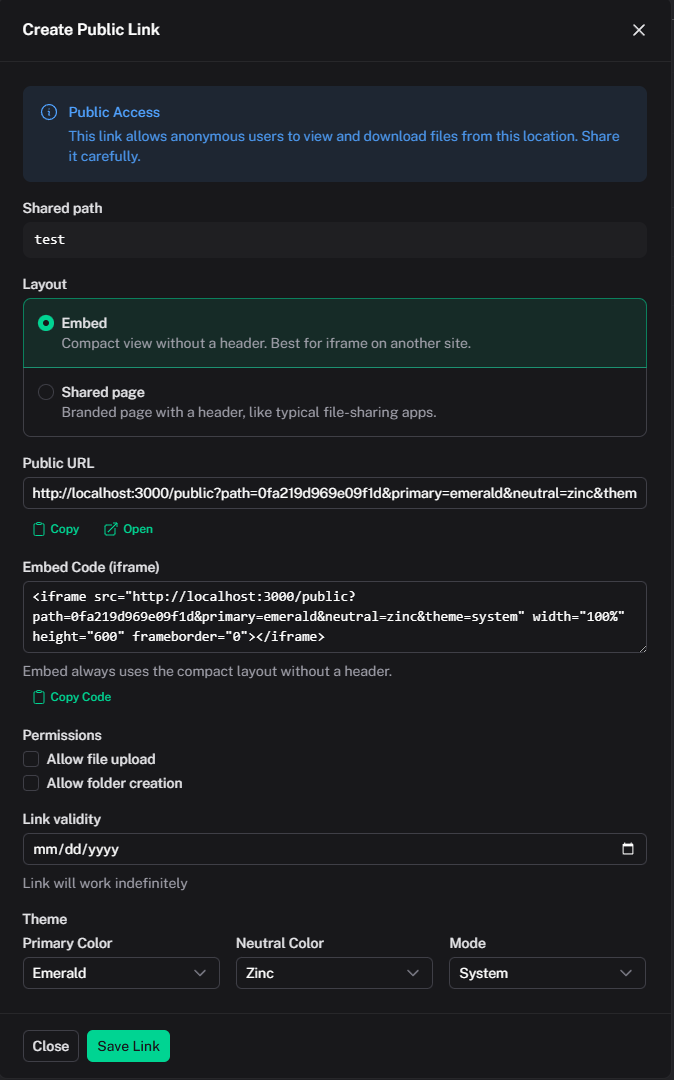
Link settings
- target bucket/path;
- expiration date (or permanent link);
- layout: Embed (no header, for iframe) or Shared page (BucketFlow header, shared path, color-mode button);
- public page theme (
primary,neutral,theme); iframe copies always use embed layout; - permissions:
- Allow file upload — allow uploading new files;
- Allow text file edit — allow editing existing supported text files in the shared path. This permission is independent of file upload;
- Allow folder creation — allow creating folders.
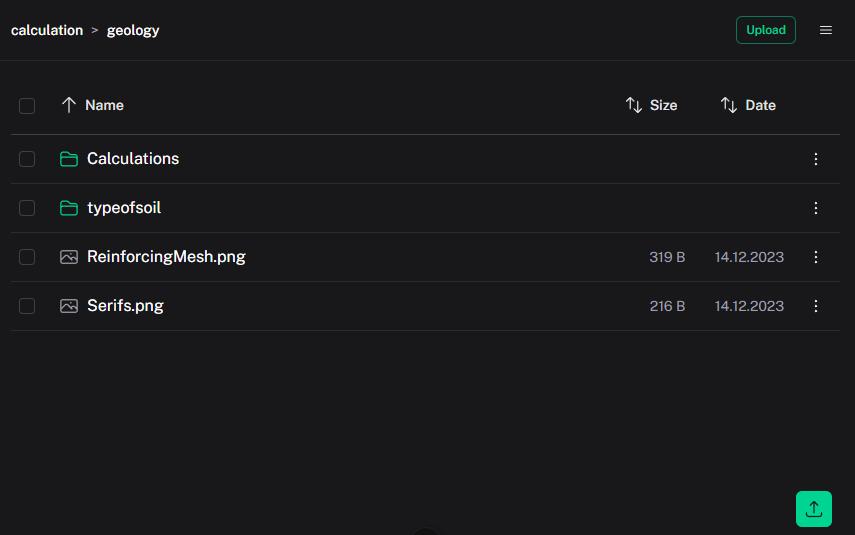
Public URL format
https://your-domain.com/public?path=<hash>&primary=emerald&neutral=zinc&theme=system
https://your-domain.com/public?path=<hash>&view=page&primary=emerald&neutral=zinc&theme=system
| Parameter | Description |
|---|---|
path |
Public link hash (required) |
view |
page for a branded share page with header; omit or embed for iframe |
primary |
Primary theme color |
neutral |
Neutral palette |
theme |
system (default), light, or dark |
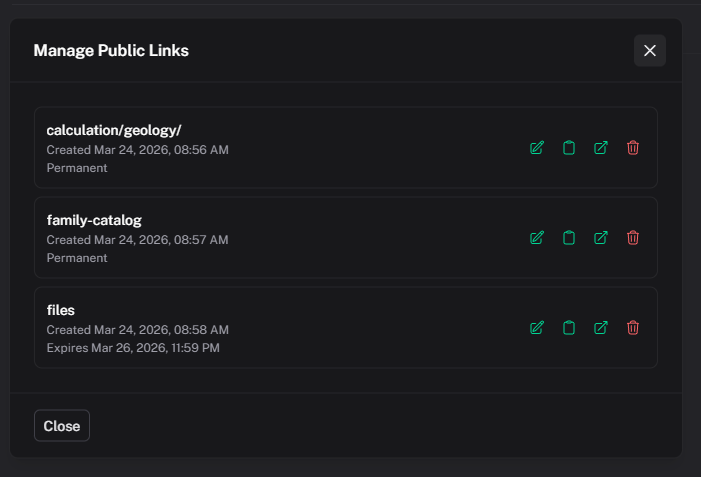
Managing existing links
In Manage Public Links you can:
- list destination links;
- open the public page;
- copy URL;
- edit settings (including expiration and permissions);
- delete links.
Security behavior
- access is scoped to link bucket/path;
- admin features are unavailable in public mode;
- default mode is read-only unless upload, text-file editing, or folder creation is explicitly enabled;
- public text-file editing only applies to existing supported text files within the shared path and does not enable file uploads;
- text editing is disabled by default and can be changed when creating or editing a link.