File Manager
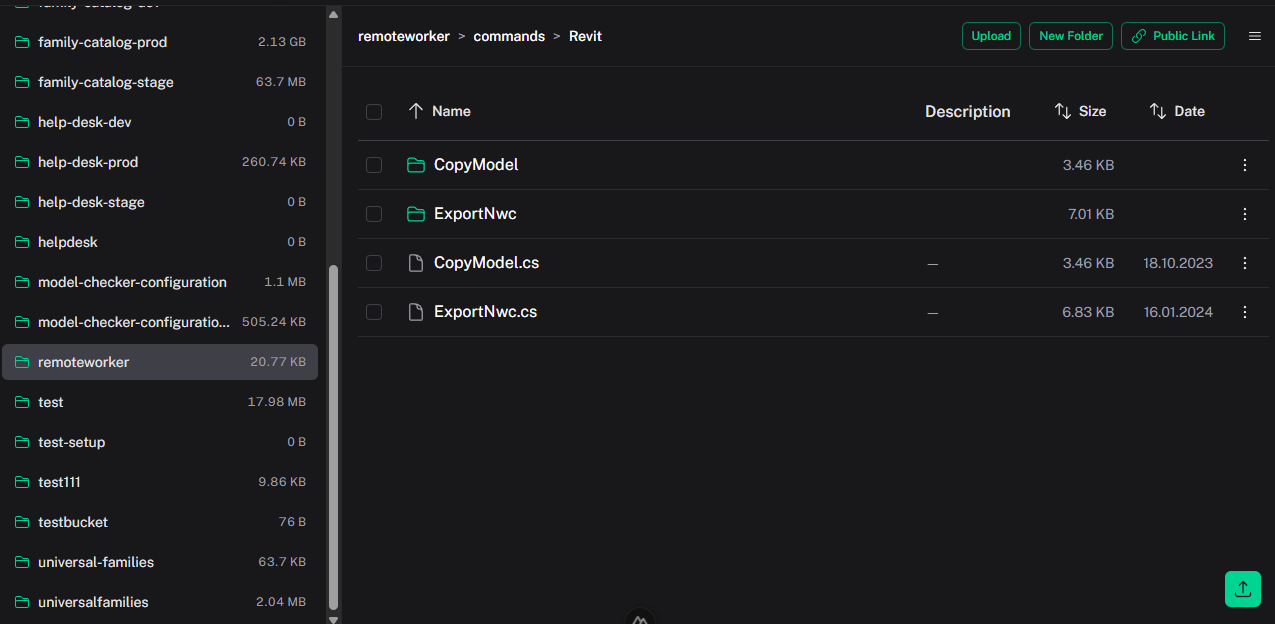
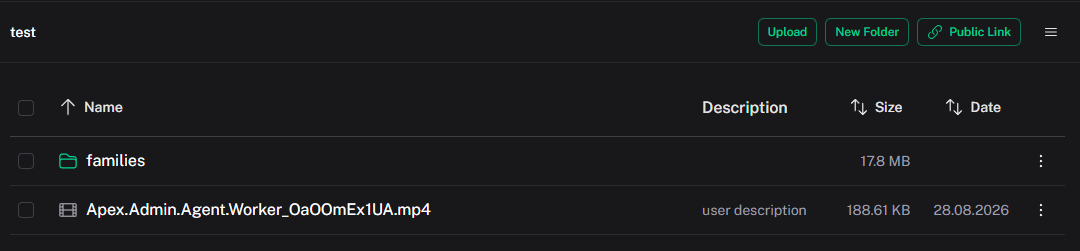
After login, the main file manager is displayed.
Navigation
- S3 Destination — select active destination
- Refresh buckets — reload buckets for the selected destination
- Bucket sidebar — switch between buckets; drag the right edge to resize (width is remembered)
- Bucket size — admins see used storage next to each bucket name
- Breadcrumbs — navigate nested folders
- Grid/List — toggle layout mode
- List sorting — sort by name, size, or date; dates use
DD.MM.YYYY HH:mmformat
Row actions (metadata, rename, download, preview, delete) appear as icons on each file or folder in both views.
Available operations
| Operation | Description |
|---|---|
| Browse | Explore files and folders in current bucket |
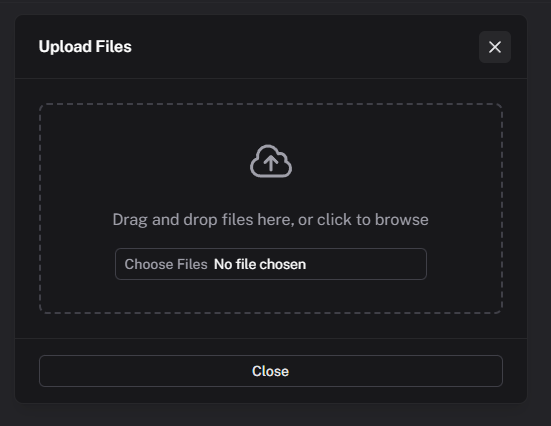
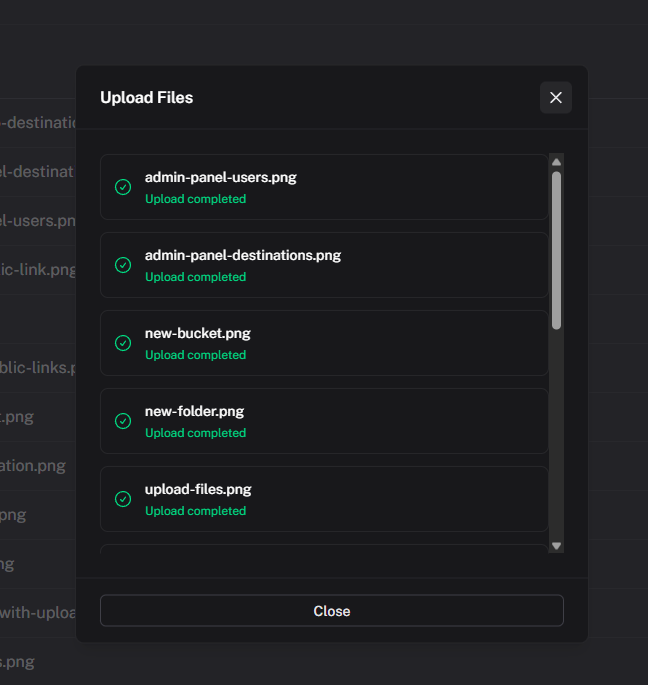
| Upload | Upload one or multiple files |
| Download | Download a single file |
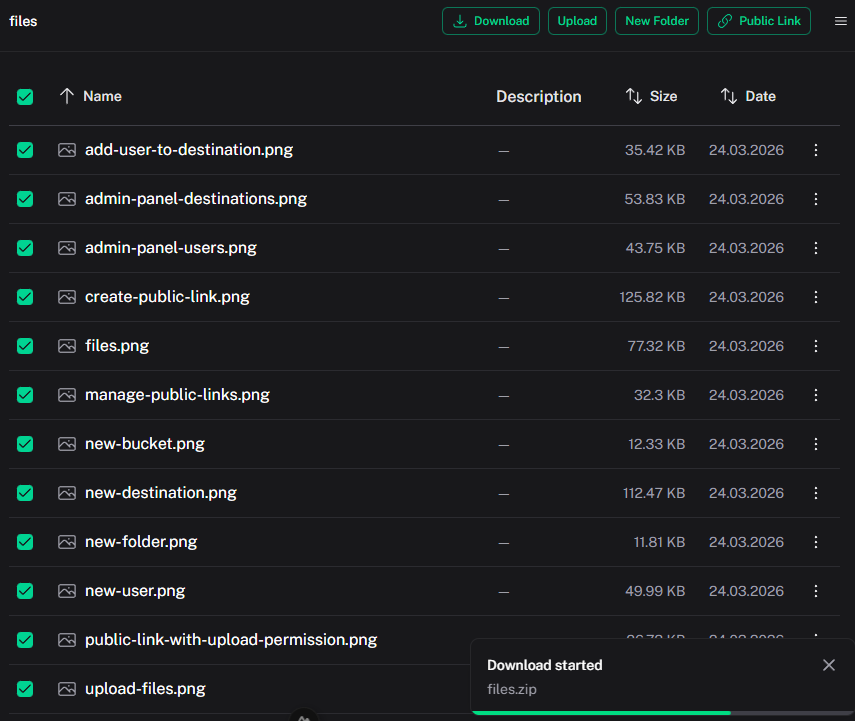
| Download selected | Bulk download selected files/folders as ZIP |
| Delete selected | Bulk delete selected files/folders after confirmation |
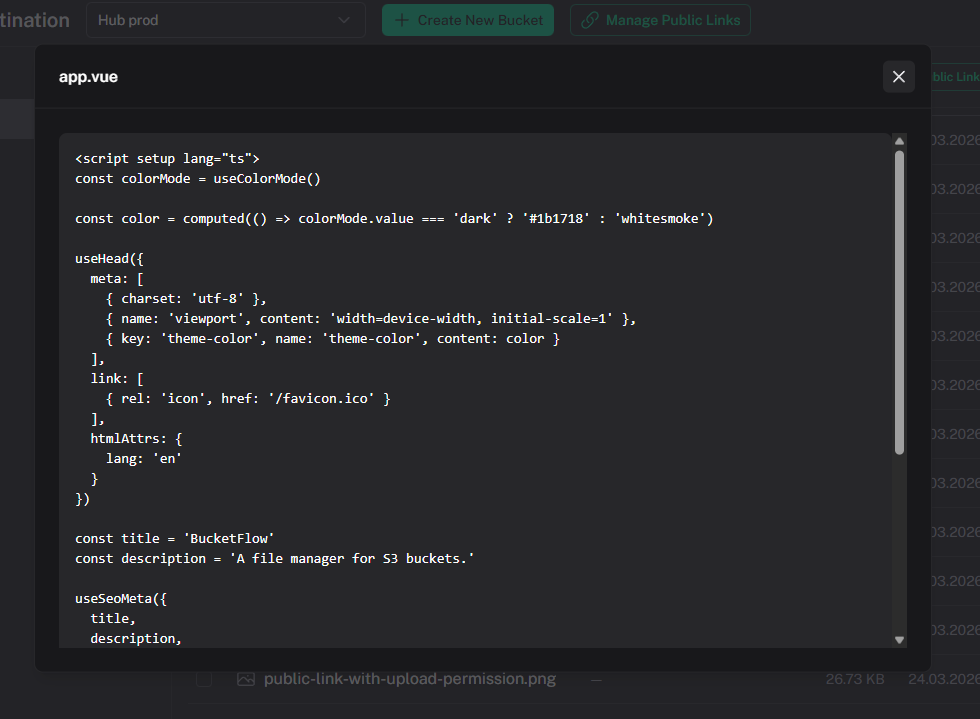
| Preview | Preview images, PDF, and text files; copy text; editors can edit and save text files |
| Create folder | Create a folder in the current path |
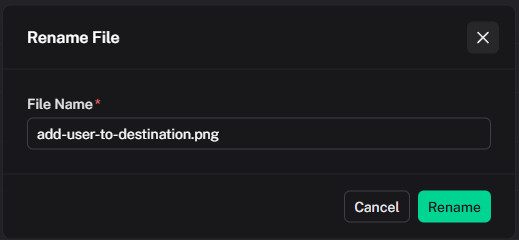
| Rename file/folder | Rename file or folder |
| Delete file/folder | Delete a single file or folder |
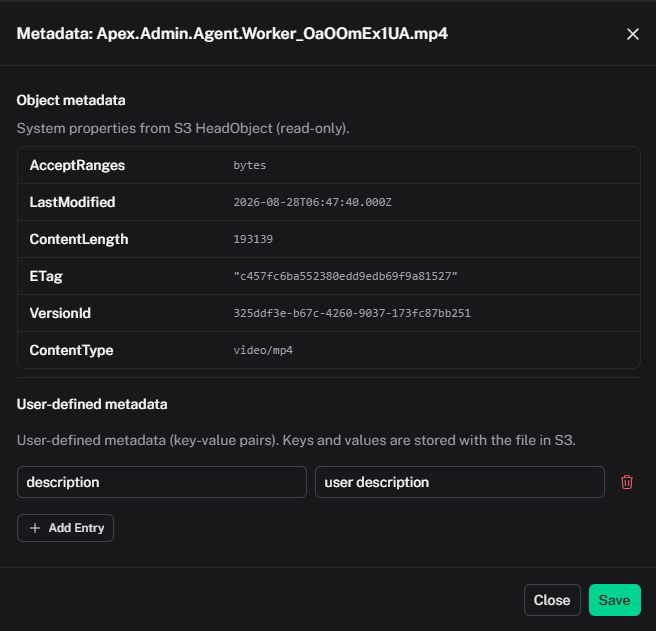
| Metadata | View/edit S3 object metadata |
Text-file preview and editing
The preview supports common text and source-code formats, including .txt, .md, .json, .js, .ts, .html, .css, .yaml, .py, and .sql. Text files are recognized by their file extension.
- Select Copy in the preview to copy the displayed text. While editing, it copies the current draft.
- Editors can select Edit, then Save to store their changes or Cancel to discard them. The preview is read-only until editing is started.
- In a public link, text editing is available only when Allow text file edit is enabled. It applies only to existing text files inside the link's shared path; it does not allow uploads.
Folder names
A folder name is a single path segment:
- 1–255 characters after trim
- no
/or\ - not
.or..
Create nested folders by opening a parent folder first, then creating a new folder there.
Bulk actions
- Select multiple rows (list) or tiles (grid)
- Download — one file downloads directly; multiple items or folders become a ZIP
- Delete — confirmation lists how many files and folders will be removed; this cannot be undone
Metadata
If destination Metadata columns are configured, those keys appear as table columns.
- User-defined metadata — key-value pairs stored with the object; editors can change them
- Object metadata (admin only) — read-only system fields from S3
HeadObject(content type, size, ETag, last modified, and related headers)
Bucket operations (admin only)
These actions sit on the main toolbar, not in the sidebar.
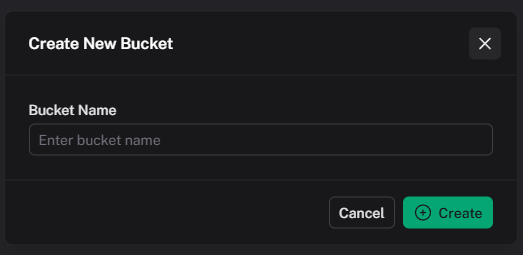
- Create New Bucket — create a bucket
- Rename Bucket — rename the selected bucket
- Delete Bucket — empty and delete the selected bucket, then remove public links that targeted it. You must type the bucket name to confirm. This cannot be undone.